Are you tired of playing games on your iPhone with touch controls? Would you like to use your PS4 controller for a better gaming experience? Well, you’re in luck! This blog post will guide you through the easy steps to connect your PS4 controller to your iPhone. We will start by covering the basics of a PS4 controller and why connecting it to your iPhone is beneficial. Then, we will dive into the step-by-step process of connecting the controller to your device. And don’t worry if you encounter any issues along the way; we’ve got you covered with troubleshooting tips. So get ready to take your mobile gaming to the next level with your trusted PS4 controller!
Basics of a PS4 Controller

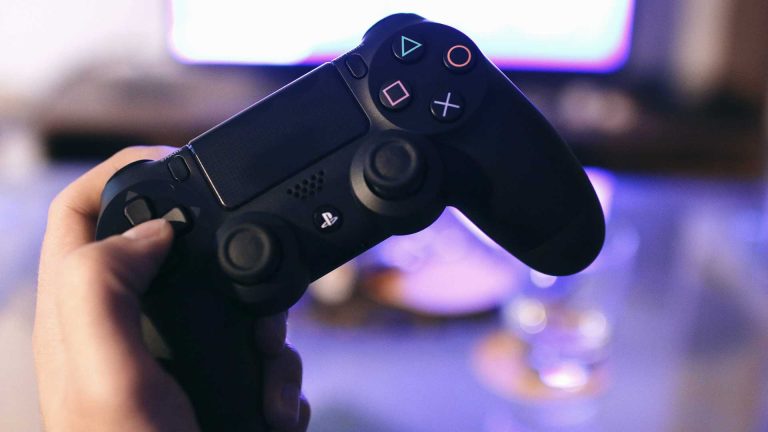
The PS4 controller is a key component of the PlayStation gaming experience. It is designed for comfort and precision and features a familiar layout with two analogue sticks, a directional pad, action buttons, and triggers. The analogue sticks provide smooth and responsive control for precise movements in games, while the directional pad allows quick menu navigation. The action buttons are used for various in-game actions, such as jumping, shooting, and interacting with objects.
The triggers offer variable input to give players more control over actions like accelerating or braking in racing games. Additionally, the PS4 controller includes a touchpad that can be used for additional controls or gestures in certain games. With its ergonomic design and intuitive button placement, the PS4 controller offers an immersive and enjoyable gaming experience for PlayStation users.
Why Connect Your PS4 Controller to Your iPhone?
Connecting your PS4 controller to your iPhone can enhance your gaming experience in a number of ways. Firstly, it allows you to play your favourite games on a larger screen, as you can connect your iPhone to a TV or monitor. This provides a more immersive gaming experience and allows for better graphics and gameplay. Secondly, using a PS4 controller with your iPhone offers more precise controls compared to using the touchscreen.
The buttons and analogue sticks on the controller provide a familiar and comfortable way to play games, making navigating and controlling characters or vehicles easier. Connecting your PS4 controller to your iPhone opens up a wider range of game options.
Many popular games are compatible with controllers, so you have access to a greater variety of gaming experiences on your phone. Connecting your PS4 controller to your iPhone can take mobile gaming to the next level and provide a more enjoyable and immersive gaming experience.
How to Connect PS4 Controller to iPhone?
Connecting a PS4 controller to an iPhone is a relatively simple process. Here are the steps to follow:
- Ensure that your iPhone is updated to the latest version of iOS.
- Turn on your PS4 controller by pressing and holding the PlayStation button and the Share button simultaneously until the light on the controller begins to blink.
- On your iPhone, go to Settings and select Bluetooth.
- Enable Bluetooth on your iPhone if it’s not already enabled.
- Your PS4 controller should appear in the list of available devices under Other Devices. Tap on it to connect.
- Once connected, you should see a notification confirming that the controller is connected and ready to use.
Please note that not all games on the App Store support external controllers, so it’s important to check if the game you want to play is compatible with a PS4 controller before attempting to connect it.
What to do if Your PS4 Controller Doesn’t Connect?
If your PS4 controller doesn’t connect, there are a few troubleshooting steps you can try. To begin, ensure that the controller is fully charged. Connect it to the PS4 using the USB cable and allow it to charge for a few minutes. If that doesn’t work, try resetting the controller by pressing the small reset button on the back with a paper clip or pin.
After resetting, connect the controller to the PS4 again and see if it connects. If none of these steps works, you may need to contact Sony customer support for further assistance or consider replacing the controller if it is no longer functioning properly.
Conclusion
In conclusion, connecting your PS4 controller to your iPhone opens up a whole new world of gaming possibilities. Whether you want to play games on the go or enjoy a more comfortable gaming experience, syncing your controller is simple. Following the easy steps outlined in this article, you can quickly and easily connect your PS4 controller to your iPhone and start gaming immediately. Don’t worry if you run across any problems during the process. There are solutions available to troubleshoot and resolve any connectivity problems. So get ready to take your mobile gaming to the next level with your PS4 controller and enjoy a seamless gaming experience.